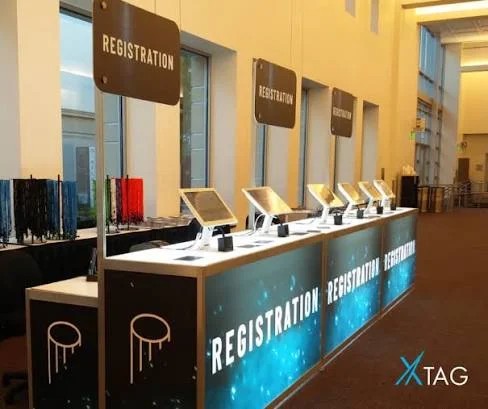
Offline event check-in allows your check-in application to keep scanning guests without the internet, store each scan locally on the device, and upload it whenever the internet connection becomes available. This feature helps you protect your event from the issues that usually occur in venue Wi-Fi when the number of guests increases rapidly.
Nobody expects Wi-Fi to go down. However, doors are opened, several hundreds of guests have already approached your table in just a couple of minutes, and the loading wheel starts spinning on your check-in screen. Your team smiles politely and tells guests “please wait a second.” Meanwhile, another line is forming behind them.
It is probably one of the easiest-to-prevent problems at an event. This article will tell you why it is so difficult for venue Wi-Fi networks to cope with the load and how the offline event check-in system works.
Why Event Wi-Fi Struggles When Guests Arrive
Venue Wi-Fi is usually built for a crowd that connects gradually. Check-in is the opposite. Everyone arrives at once, everyone wants a connection, and everyone wants it now. A few simple things explain most of the trouble.
Too Many People on One Shared Network
Wi-Fi shares a limited amount of capacity between everyone connected. Add a hundred people and each one gets a little less. Add a thousand and the network can slow to a crawl, even if it looked perfect during setup. The venue didn’t necessarily do anything wrong. The crowd is just bigger than the capacity.
Guests Carry More Than One Device
Almost nobody arrives with a single device. There’s a phone in the pocket, a laptop in the bag, maybe a tablet or a smartwatch. Each one can ask for a connection, so the real number on the network sits well above your guest count. Your scanners are competing with all of them.
Everyone Connects in the Same Minute
A conference crowd doesn’t trickle in. If the first speaker starts at nine, half the room appears between half past eight and nine. Those are also the minutes when guests check email, open the event app and post photos. Your check-in scan lands right in the middle of the busiest traffic of the day.
Big Buildings Block Signal
Concrete walls, steel beams and glass all weaken wireless signal. Exhibition halls and large hotels have plenty of all three. A network can look strong in one corner and weak right where your registration desk stands. Moving the desk a few metres can change everything, which is a good reason to test on the spot instead of trusting a floor plan.
What Happens to Check-in When the Network Drops
A check-in app that depends on a live connection has to ask a server about every guest. If the network slows, every scan waits. If it drops, scans can fail. Staff end up searching names by hand, and that’s exactly when queues grow fastest.
An offline-capable app turns this around. It saves each scan on the device first, then sends the data when a connection is available. The scan itself never depends on the network. The guest walks through, and the paperwork catches up later.
| Online-only check-in | Offline-capable check-in | |
| Needs a live connection for each scan | Yes | No |
| When venue Wi-Fi slows down | Scans slow down or fail | Scanning carries on |
| Where scan data is saved first | On a server | On the device |
| When data reaches your records | Straight away | When the connection returns |
Tip: Offline mode protects the scan. Anything that needs the internet, such as sending data elsewhere, waits until the connection is back.
How ArrivalMe Handles Offline Check-in
ArrivalMe saves check-in data on the device you’re using and syncs it automatically when your internet connection returns. The mobile guest list is built to work both online and offline, so your team keeps checking people in while the venue network struggles.
Scans Are Saved on the Device
Here’s how it looks from the guest’s side. Each person receives a unique QR code after registering, by email or SMS. At the venue, a staff member scans it with the ArrivalMe app. The guest is checked in and moves on. Their experience stays the same whether the Wi-Fi is strong or gone, which is the whole point.
Built for a Team, Not One Desk
The same check-in works on mobile phones, tablets, laptops and kiosks, so your team isn’t tied to one fixed desk. Several staff can log in and check guests in at the same time from different entry points. That helps when a crowd arrives all at once and you open more than one door. You can read more about how scanning and entry points work on our event check-in solution page.
People on the Ground
Software only goes so far. If a device misbehaves at the wrong moment, you want a person nearby, not an email address. ArrivalMe places trained staff at major events in Dubai, so help is at the venue when you need it.
What Offline Mode Does Not Do
Be realistic about what offline mode can do. It protects the scan. It doesn’t fix a messy guest list, a guest who never received their QR code, or a team that has never seen the app before.
It also can’t send anything while there’s no connection. Whatever needs the internet waits until it returns. That’s fine for check-in. It just means you shouldn’t expect everything to update instantly during an outage.
Think of offline mode as a safety net. The basics still matter: a clean guest list, clear instructions to guests, and a team that has practised.
A Backup Plan for Event Day
You can’t fix the venue’s network, but you can stop being surprised by it.
A Week Before
Ask the venue what network will be available on the day and how many devices it was planned for. Their answer tells you how much to worry. A vague answer tells you something too.
Then clean your guest list. Remove duplicates, fix typos and check your VIP tags. Export a backup copy and keep it somewhere safe. You may never open it. That’s the idea.
The Morning of the Event
Get there early. Go to your actual desk, with your actual devices, and scan a test code. Then switch one device to airplane mode and scan again. If that works, you’ve just tested the exact situation you’re worried about. Do it at each station, not just one.
If the Network Drops Mid-Event
Stay calm and keep scanning. Tell your team what’s happening so nobody starts searching names by hand out of habit. Avoid restarting devices unless something is clearly broken. If the team stays steady, your guests will barely notice.
After the Event
Before you pack up, connect your devices to a working network and check that everything has synced. Then export your attendance list and compare it with your registrations. It takes a few minutes and saves arguments later.
Offline Check-in for Different Event Types
The risk looks a little different depending on what you’re running.
Conferences
Conferences have a sharp first-hour wave. A keynote at nine means half the room arrives together. That’s where offline event check-in earns its place, because your scanners keep working even when guests’ phones are competing for the same network.
Exhibitions and Trade Shows
Exhibitions spread across large halls with many entrances, and thick walls make signal patchy. Running several entry points at once helps spread the crowd. If you organize exhibitions, our exhibitor lead retrieval service covers what happens once visitors are inside.
Corporate Launches and Private Events
Smaller events feel the problem too. A hundred guests in a hotel ballroom can still overload a modest network. A smooth, quiet arrival matters even more here, because the room is small enough that everyone notices a hold-up.
Questions to Ask Any Check-in Provider
Ask whether the app works without internet, and what exactly it saves on the device. Ask when it syncs, and what happens to your data until then.
Ask whether several staff can scan at once from different entry points. And ask who will be at the venue if something fails, because a support email isn’t the same as a person standing next to you.
Where This Fits in the Rest of Your Event
Check-in is only as good as the guest data behind it. Our guest list and badge management service keeps that data in one place, and our onsite event registration service covers everything from sign-up to the door.
If you’re still planning the whole process, our event registration checklist walks through it step by step. Want to talk through your venue? Contact our team.
Final Thoughts
Event Wi-Fi struggles for simple reasons: too many devices, shared capacity, everyone connecting at once, and buildings that block signal. You can’t change any of them. You can choose a check-in app that doesn’t depend on them.
Ask about offline mode early, test it at your real desk, and brief your team. Then a weak network becomes a small hiccup instead of a queue.
Frequently Asked Questions
What is offline event check-in?
It’s check-in that keeps working without internet. The app saves each scan on the device and syncs the data once a connection returns, so a weak venue network doesn’t stop guests from getting in.
Does ArrivalMe work without internet at the venue?
Yes. ArrivalMe saves check-in data locally on the device you use and syncs it automatically when your internet connection returns. The mobile guest list is built to work both online and offline.
Why does Wi-Fi fail at big events?
Many devices share limited capacity, and guests tend to connect at the same time. Thick walls and large halls weaken signal too, so even a well planned network can struggle at the registration desk.
Can I test offline check-in before the event?
Yes, and you should. Go to your actual desk, scan a test code, then switch a device to airplane mode and scan again. Repeat at every station you plan to use.
What happens to scans made while offline?
They’re saved on the device you were using. Once the connection returns, ArrivalMe syncs the check-in data automatically, so your team doesn’t need to re-enter anything by hand.
Can several staff check in guests at the same time?
Yes. Multiple team members can log in and check guests in at once from different entry points, which helps when large numbers of guests arrive together.